Silent Dual-Mode Ergonomic Mouse (4000 DPI) Guide
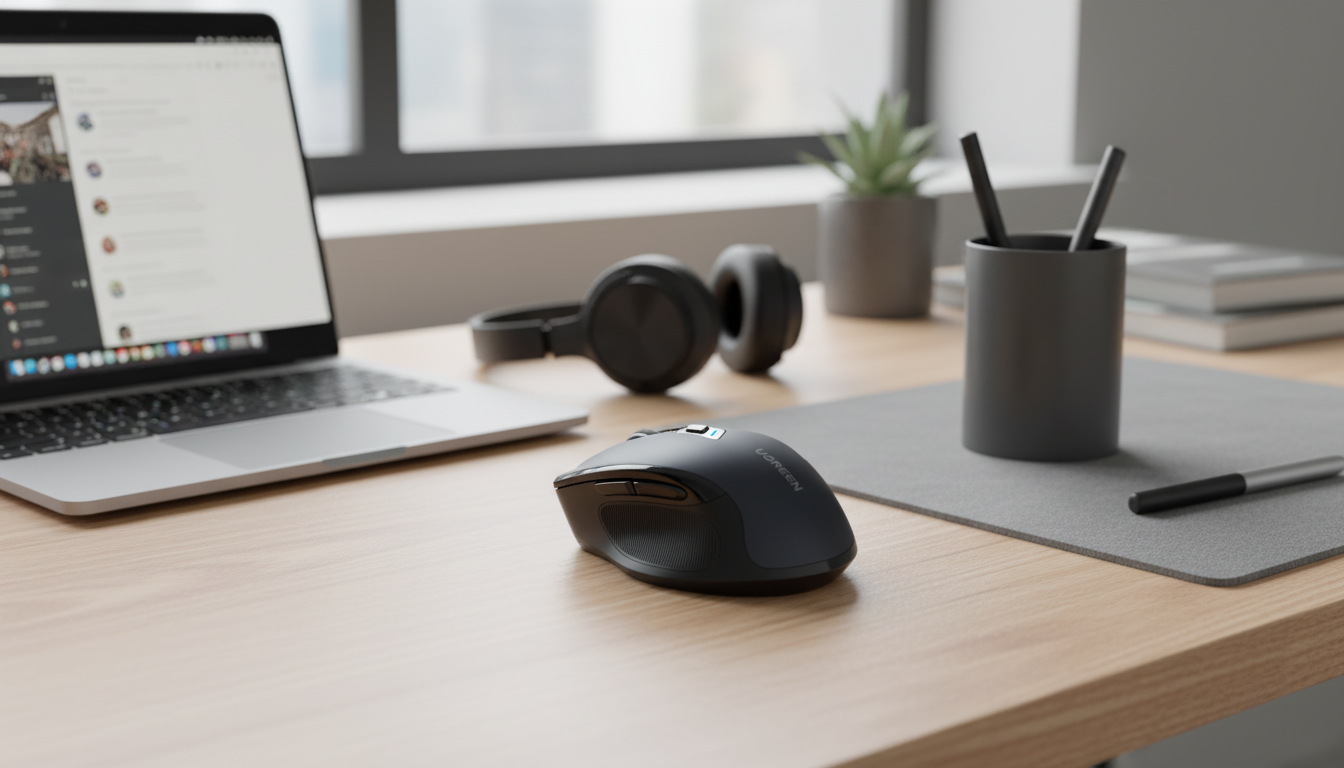
Wireless Ergonomic Mouse with 4000 DPI, Silent Buttons, and Dual Wireless (2.4G + Bluetooth)
A comfortable mouse can make long work sessions feel easier, while adjustable sensitivity and quiet clicks help in shared spaces. This guide breaks down what matters in an ergonomic wireless mouse—fit, DPI control, silent switches, and reliable dual-mode connectivity—so setup and daily use are straightforward.
Quick overview
- Ergonomic shape designed to support a more natural hand position during long sessions
- Adjustable DPI up to 4000 for switching between precision work and faster cursor movement
- Silent button design suited for offices, classrooms, libraries, and late-night use
- Dual wireless options: 2.4G (USB receiver) and Bluetooth for flexible device pairing
- Six-button layout for common actions like forward/back navigation and productivity shortcuts
If you want a simple, all-around option with both connection modes and quiet clicks, the Wireless Ergonomic Mouse 4000 DPI Silent 6 Buttons Dual/2.4G is an easy pick for home, office, or hybrid setups.
Comfort and ergonomics: what to look for
Ergonomics isn’t only about a “curvy” shell—it’s about how the mouse supports your hand so your grip can stay relaxed. A supportive palm area can reduce the feeling of squeezing, especially during repetitive tasks like spreadsheets, ticketing tools, or long browsing sessions.
- A supportive palm area can reduce the feeling of gripping tightly, especially during repetitive tasks
- A contoured side can help keep the thumb and ring finger from dragging across the desk
- Best fit depends on hand size and grip style (palm, claw, fingertip); a slightly larger body often feels steadier for palm grip
- Mouse weight affects fatigue: lighter tends to feel quicker; heavier can feel more stable for controlled movements
- Pairing ergonomics with correct desk height and neutral wrist posture usually matters as much as the mouse shape
For practical ergonomics guidance beyond the mouse itself, it helps to review posture and workstation basics from sources like Cleveland Clinic and device setup tips from Microsoft Support.
DPI levels and when they feel most useful
| DPI setting | Best for | How it feels |
|---|---|---|
| 800–1200 | General office work, spreadsheets, browsing | Steady and controlled; easier to stop precisely |
| 1600–2400 | Mixed work, multi-monitor setups | Balanced speed; less wrist movement across large screens |
| 3200–4000 | Fast navigation, large monitors, some gaming | Very quick; best with careful hand control |
DPI and control: getting smooth, accurate movement
DPI (dots per inch) is the sensitivity of the mouse. Higher DPI moves the cursor farther with less hand motion, while lower DPI can feel steadier for selecting text, aligning cells, or working with small UI elements. Many people end up using two “go-to” settings: one lower for precision tasks and one higher for fast navigation across big or multiple displays.
- Higher DPI moves the cursor farther with less hand motion; lower DPI often feels more precise for selecting text and small UI elements
- Switch DPI based on task: lower for editing and design work, higher for rapid navigation across large displays
- For consistent feel, match mouse speed with operating system pointer settings and keep acceleration preferences consistent
- A clean mouse sensor window and a suitable surface (mouse pad or matte desk) can improve tracking stability
If you’ve ever wondered why one DPI setting feels “floaty” on one computer and “snappy” on another, it’s often the combination of OS pointer speed, acceleration, and display resolution. A plain, consistent approach is to pick a DPI you like, then fine-tune pointer speed once and avoid frequent changes. For a deeper DPI explainer, see Logitech’s DPI guidance.
Silent buttons: where they help most
Silent clicks are a quality-of-life upgrade when other people are nearby. The workflow stays the same—left click, right click, and usual shortcuts—just with less sharp click noise that can draw attention during meetings or study sessions.
- Quiet clicks reduce distraction in shared environments without changing basic mouse workflow
- Silent switches are especially useful for repetitive clicking tasks (documents, browsing, inventory tools)
- Expect reduced click noise, but scrolling and surface movement can still create sound depending on the desk and mouse pad
- If the mouse has side buttons, assigning them to back/forward or copy/paste can reduce extra movements and clicks
Dual wireless connectivity: Bluetooth vs 2.4G
Six-button layout: practical ways to use extra buttons
If you frequently switch between a tidy home setup and a backpack laptop setup, it can also help to keep your workspace organized so the mouse surface stays consistent. For a simple organizational companion, consider the Luxe Hacks for Small Closets Checklist | Digital Download Closet Organization Guide to streamline storage and reduce desk-area clutter.
Setup checklist and daily care
For quick cleanup around your workstation (which helps keep tracking smooth), a lightweight cordless cleaner can make it easier to keep dust and debris off the desk. If that’s useful, the Cordless Vacuum Cleaner, 235W Brushless Motor, 40Min Runtime is a practical home-office add-on.
Who this mouse tends to suit
FAQ
What does 4000 DPI mean on a wireless mouse?
4000 DPI refers to cursor sensitivity: at higher DPI, the pointer travels farther with less hand movement. Lower DPI often feels more precise for careful selection, while higher DPI can feel faster on large or multiple monitors.
Is 2.4G wireless better than Bluetooth for a mouse?
2.4G with a USB receiver is usually plug-and-play and can feel very consistent on desktops. Bluetooth is convenient for laptops and tablets because it saves USB ports; a dual-mode mouse gives you both options depending on the device.
Do silent mouse buttons feel different from regular clicks?
Silent buttons typically reduce the click sound significantly, though the tactile feel can be slightly softer than traditional switches. The mouse still works normally, and any remaining noise usually comes from the scroll wheel or the mouse moving on the desk.










Leave a comment